
Do you know what I hate most about Windows XP? It's look. It's
painful combination of blue and green. So one of the first thing I do
after every Windows install is patch the Uxtheme file so that I can apply a visual style of my choice. I hope you are not using the default theme, are you?
The following is a list of some of the choicest visual styles that can give Windows XP a total makeover. Pick any!
Note: This list contains only shell styles that can be applied directly by patching Uxtheme or through StyleXP. No Window Blinds skins here.
Also see
Another 25 beautiful Windows XP themes (A fresh new collection)
25 beautiful Windows Vista themes (For Windows Vista users)
32 gorgeous and unique Windows 7 themes
25 beautiful icon sets for Windows
21 most beautiful mouse cursors for Windows
Watercolor Arrow - This theme looks so cool with a light colored taskbar, blue menu and funny hand-drawn type icons.
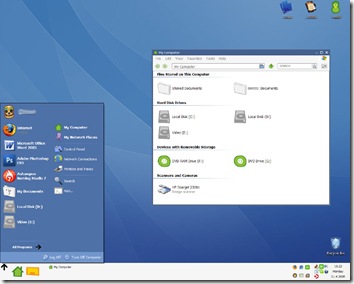

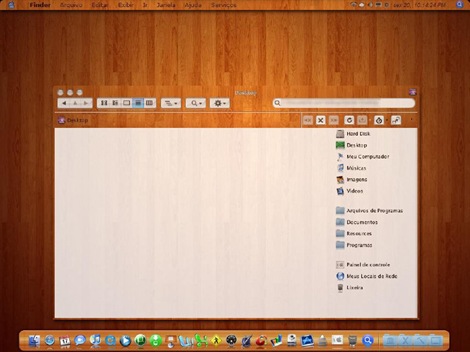
Wood Visual Styles - Transforms everything to wood! This theme is tested in Windows XP SP2. A few people reported problems with SP3. (This theme is no longer available. Sorry.)
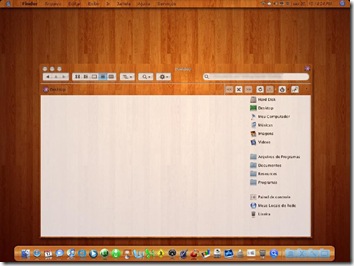
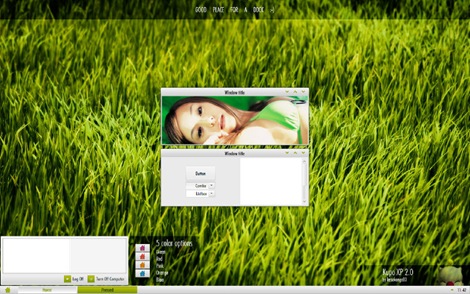
Kupo XP 2.0 - A very minimalistic design available in 5 colors.
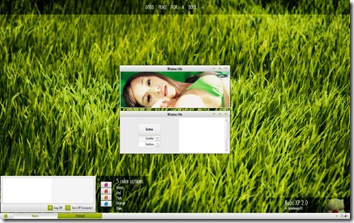
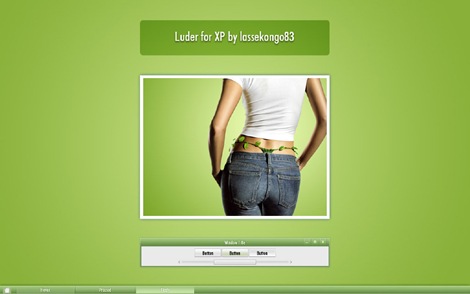
Luder - Another minimalistic theme with a clean green look.
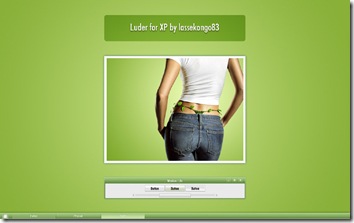
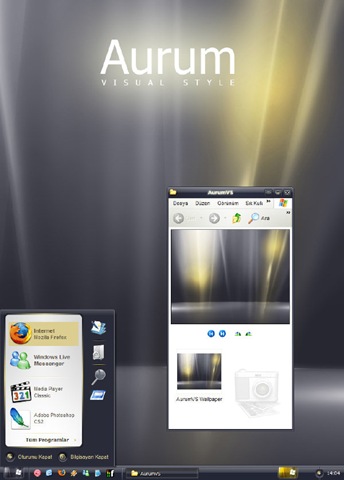
Aurum VS 1.1 - A bit of Vista's Aurora look.
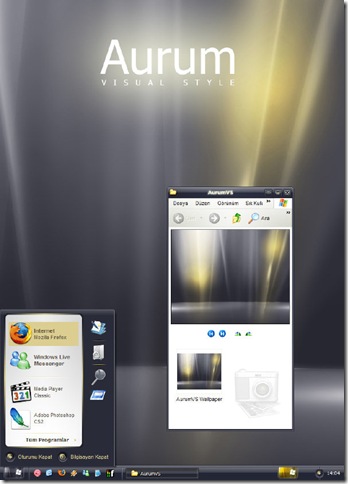
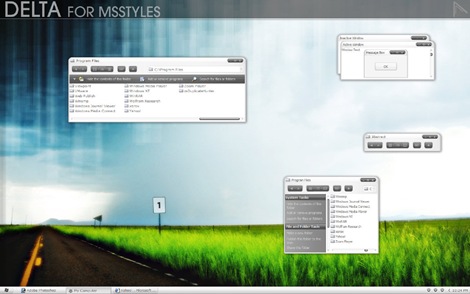
Delta VS - A silver gray theme with mild colors.

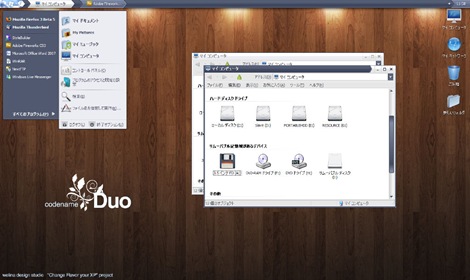
DUO - A mixture of Vista and Mac.

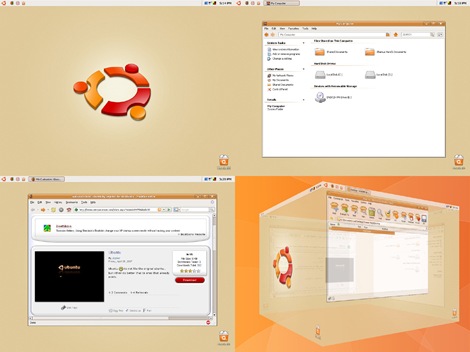
Ubuntu XP - This is the closest Windows XP can get to Ubuntu! Brilliantly done.
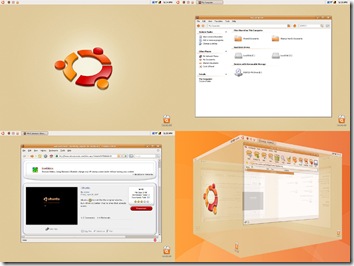
Simplebox - This time it's Fedora. (This theme is no longer available)
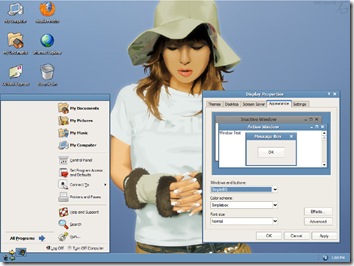
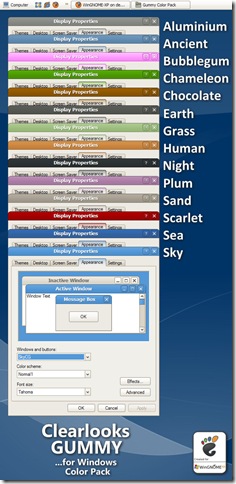
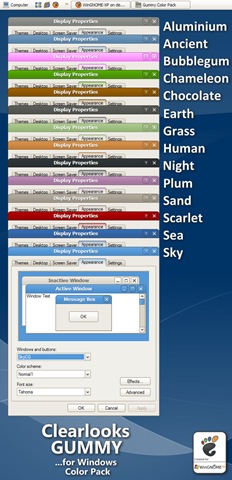
Clearlooks Gummy - This theme pack gives a "Gnome" look to Windows XP. Available in 14 different colors!
Cadoo Visual Style 1.0 - A smooth whitish theme that gives a great contrast to any icon set.

animus - A Mac like blue and white theme that works great with Mac icon set.

OSX Tiger V - Give Windows the Mac look. Very nicely done.
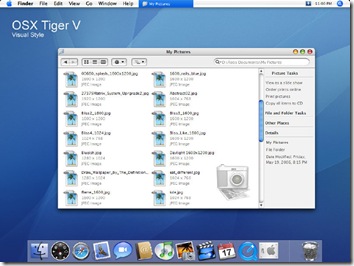
Leopard X - Another Mac theme with a slightly darker look.

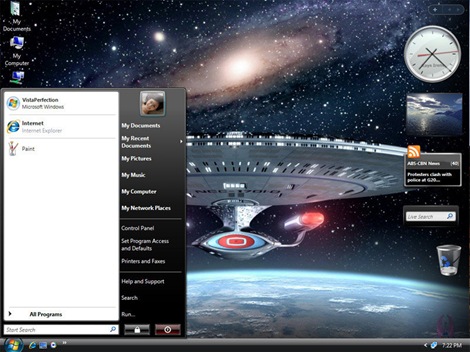
VistaPerfection X4 - One of the best looking Vista theme for Windows XP.

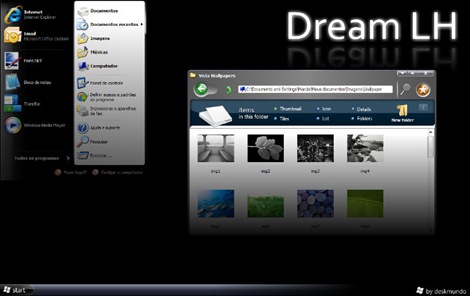
Dream LH 1.0 - Another theme with the Vista look, but darkish and black explorer window and task panel.

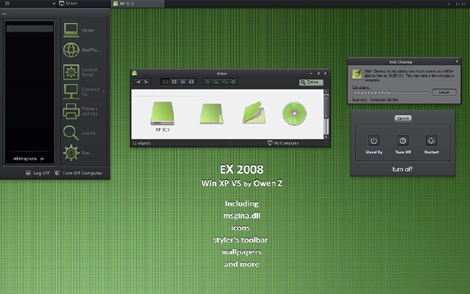
EX2008 Visual Style - A darkish theme with a tinge of green. Very minimalistic.
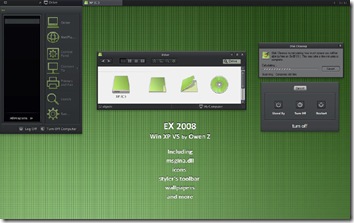
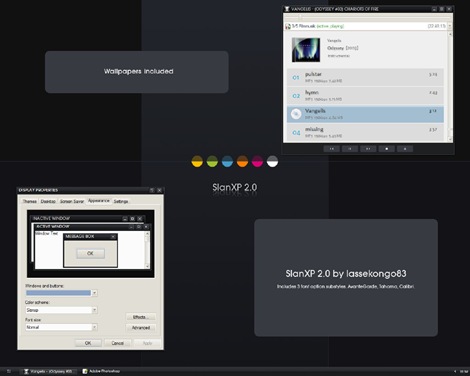
SlanXP 2.0 - Another dark theme for Windows XP.

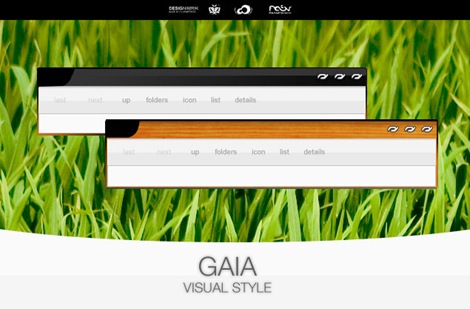
GAIA - A very simple yet elegant theme with mild colors.

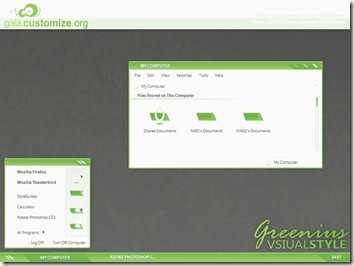
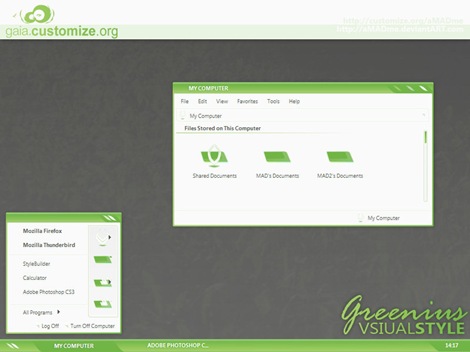
Greenius.VS - Another beautiful green theme. (Green seems to be the preferred color for designers)
P.S: This is how to install the themes:
1. Download and install Uxtheme patcher. During install a message will be displayed that important Windows file are being replaced and will ask you to insert the windows CD to fix it. Just ignore and click "continue"
2. Download the theme pack and copy the folder containing .msstyles and shellstyle.dll (this is inside another folder) to C:\WINDOWS\Resources\Themes\
3. After this is done, right-click on desktop and click Properties. Now click on the Appearance tab. Under Windows and Buttons you will find the list of all the themes you installed. Select one from the list and click Apply.
Sometimes, the downloaded pack contains additional utilites like Styler and Rocketdock etc to bring other changes to Windows. It's up to you whether you want to install the additional stuff. You can visit the original page of the theme author for more instruction on how to use those.
The following is a list of some of the choicest visual styles that can give Windows XP a total makeover. Pick any!
Note: This list contains only shell styles that can be applied directly by patching Uxtheme or through StyleXP. No Window Blinds skins here.
Also see
Another 25 beautiful Windows XP themes (A fresh new collection)
25 beautiful Windows Vista themes (For Windows Vista users)
32 gorgeous and unique Windows 7 themes
25 beautiful icon sets for Windows
21 most beautiful mouse cursors for Windows
Watercolor Arrow - This theme looks so cool with a light colored taskbar, blue menu and funny hand-drawn type icons.
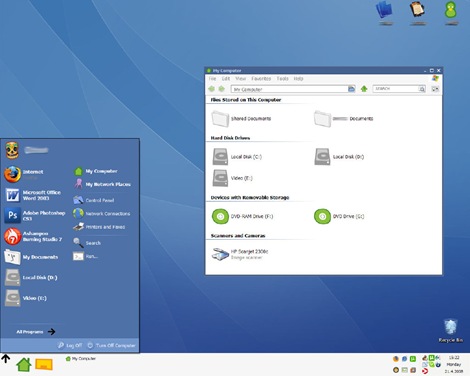
Wood Visual Styles - Transforms everything to wood! This theme is tested in Windows XP SP2. A few people reported problems with SP3. (This theme is no longer available. Sorry.)
Kupo XP 2.0 - A very minimalistic design available in 5 colors.
Luder - Another minimalistic theme with a clean green look.
Aurum VS 1.1 - A bit of Vista's Aurora look.
Delta VS - A silver gray theme with mild colors.
DUO - A mixture of Vista and Mac.
Ubuntu XP - This is the closest Windows XP can get to Ubuntu! Brilliantly done.
Simplebox - This time it's Fedora. (This theme is no longer available)

Clearlooks Gummy - This theme pack gives a "Gnome" look to Windows XP. Available in 14 different colors!
Cadoo Visual Style 1.0 - A smooth whitish theme that gives a great contrast to any icon set.
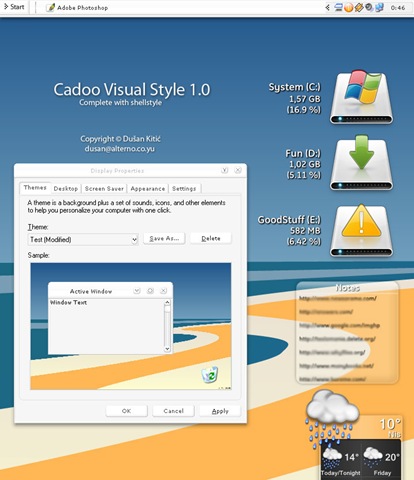
animus - A Mac like blue and white theme that works great with Mac icon set.
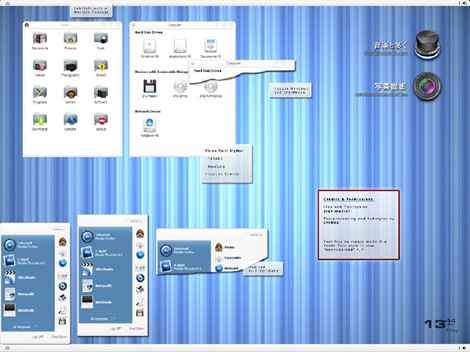
OSX Tiger V - Give Windows the Mac look. Very nicely done.
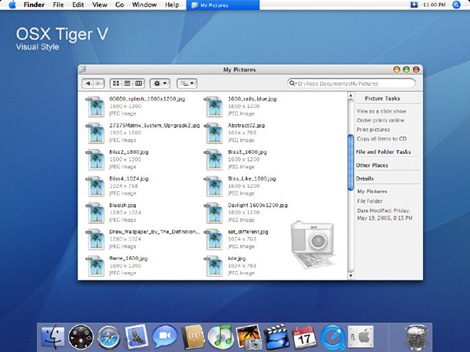
Leopard X - Another Mac theme with a slightly darker look.
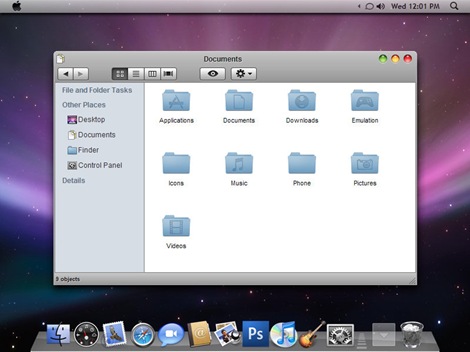
VistaPerfection X4 - One of the best looking Vista theme for Windows XP.
Dream LH 1.0 - Another theme with the Vista look, but darkish and black explorer window and task panel.
EX2008 Visual Style - A darkish theme with a tinge of green. Very minimalistic.
SlanXP 2.0 - Another dark theme for Windows XP.
GAIA - A very simple yet elegant theme with mild colors.
Greenius.VS - Another beautiful green theme. (Green seems to be the preferred color for designers)
P.S: This is how to install the themes:
1. Download and install Uxtheme patcher. During install a message will be displayed that important Windows file are being replaced and will ask you to insert the windows CD to fix it. Just ignore and click "continue"
2. Download the theme pack and copy the folder containing .msstyles and shellstyle.dll (this is inside another folder) to C:\WINDOWS\Resources\Themes\
3. After this is done, right-click on desktop and click Properties. Now click on the Appearance tab. Under Windows and Buttons you will find the list of all the themes you installed. Select one from the list and click Apply.
Sometimes, the downloaded pack contains additional utilites like Styler and Rocketdock etc to bring other changes to Windows. It's up to you whether you want to install the additional stuff. You can visit the original page of the theme author for more instruction on how to use those.
» Read More...


